
Learn when and how to use the Disavow Tool to manage your backlink profile. Identify spammy inbound links, check anchor text, evaluate source websites, monitor link relevance, and use analysis tools like Moz and Ahrefs. Follow best practices and avoid mistakes for effective disavowing.
Having good incoming links is great but sometimes you’ll notice some spammy sites in your backlink profile. Do they affect your SEO and PageRank negatively? The experience of webmasters throughout the years says yes.
You can approach this with:
- Reach out to the site owner and ask them to stop linking to you.
- If the above doesn’t work you can disavow, i.e. voluntarily remove links from your backlink profile.
Your Guide to Disavowing Links
Practice caution
Google’s Disavow Links tool helps you keep track of and manage your inbound links but is to be used with utmost care.
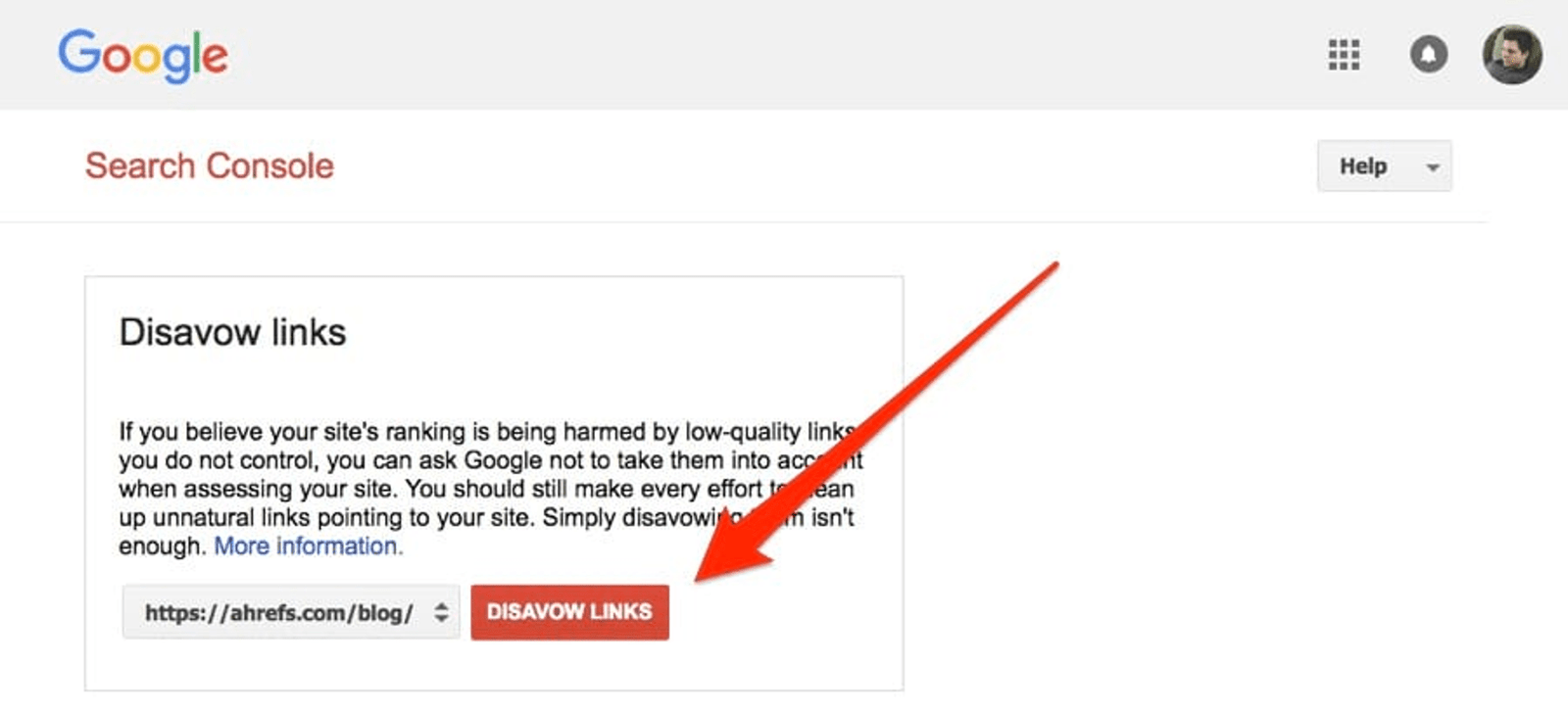
But what’s the care for? Isn’t removing spammy links a good practice? It is but with a careless lapse in judgment, you could also end up removing links that help your SEO. And you’ve to do everything according to Google’s guidelines to avoid any penalties.
Google says it’s not necessary
Google is a search giant and it is good at detecting spammy backlinks. If a spammy site sends unwanted backlinks to multiple sites, Google negates all the spammy links.
Google says you should only disavow links if:
- Your site has a lot of spammy and low-quality links
- The sheer number of links and the reputation of the domain have caused or will cause penalties to your site.
How do I know I have spammy inbound links?
Evaluate Source Websites and Anchor Texts:
- Check the content on the linking sites, is it low-quality, spammy, or irrelevant? If the anchor text looks over-optimized or irrelevant it’s likely a spammy link.
Check Domain and Page Authority:
- Use tools like Moz, Ahrefs, or Semrush to evaluate DA and PA.
Watch for Unnatural Link Patterns:
- Look for sudden spikes in link growth and unnatural patterns in your backlink report.
Use Analysis Tools and Inspect Redirects and Cloaking:
- Tools like Ahrefs, Moz, Semrush, and Majestic can help analyze backlinks. Some spammy sites use redirects or cloaking techniques- to trick the search engine into thinking the site isn’t spammy.
Regularly Monitor and Clean Backlinks:
- Do audits for penalties and PageRank updates. Use Google Search Console for alerts.
Do regular backlink audits to check for penalties and PageRank updates.
Steps to Use the Disavow Links Tool
To disavow links, you need a Google Search Console account. Import a text file with the toxic links to Google’s Disavow Links tool. You can input specific URLs or entire domains.
Create the list. Go to the Disavow Links Tool. Select a property and upload your list. Fix any errors and re-upload if needed.
To remove disavowals, select a property and click cancel disavowals. Ensure no high-quality backlinks are in the disavow list. Monitor your rankings and backlinks often. This helps ensure better site rankings.
How to Create and Submit a Disavow File
Identify links to disavow. Compile them in a .txt file. Name it ending in .txt (e.g., yourdomain-disavow-file.txt).
Add each link or domain on a new line. For notes, start the line with #.
Example:
# No response from webmaster on 7/14/21
domain:badsite.com
https://shadydirectory.com/bad-link.html
https://www.unreliablesite.com/spammy-links.php
# Tried to remove links on 6/30/21
domain:suspiciousdomain.it
Log into Google Search Console. Go to the disavow tool. Select your property, upload the file, and click “Submit.”
If the file is proper and correctly formatted – you will be able to submit it without errors. If an error arises, fix it, and resubmit. Remember that every time you upload a new file, it overwrites the previous one – so keep a copy of all disavowed links and list them all in each file.
Best Practices and Mistakes to Avoid in Disavowing
Best Practices
- Try manually removing the links by contacting the site owner. Disavowing should primarily be your last resort because of the risks it entails.
- Only disavow clearly low-quality or risky links that are penalizing your site or are likely to.
- If you have a spammy domain sending multiple spammy backlinks to your site use “domain:” to disavow all links from one site.
- Keep notes on disavowed links, dates, and removal attempts- you can add notes in your file using #. They help in not spamming Google with disavowing requests while making the attempts.
- Regularly check for new spammy links and update your disavow file.
Tips for Using the Disavow Tool
- The Correct File format: Use a UTF-8 or 7-bit ASCII text file ending in .txt.
- Use This Line format: One URL or domain per line. Prefix domains with “domain:”.
- File size: Maximum 100,000 lines or 2MB.
- Comments: Start with # for comments. They are ignored by Google.
Mistakes to Avoid
- File type: Upload a text file, not Word or PDF.
- Domain disavowal: Use “domain:” for many spammy links from one domain.
- Correct syntax: Use “domain: domain.com“, not “https” or “www”.
- Comment placement: Put detailed comments in reconsideration requests, not the file.
- Short comments: Keep comments short to avoid mislabeling lines.
- Cautious use: Disavowing should be precise to avoid losing good links.
What after disavowing?
During a 2016 Google Hangout, John Mueller said “With regards to ranking after submission of a disavow file, in general, it‘s not the case that you would see any significant difference in ranking after doing that.”
The primary benefit of disavowing links is to avoid any incoming penalties rather than recovering lost rankings. But by being consistent with maintaining a healthy backlink profile, you guarantee a long-term increase in your PageRank and continuous traffic growth.